Electronics · 7 min read · 22/09/2026
Buying a Monitor: Panel, Resolution, Hertz and Connections Explained
IPS, VA or OLED, 27 or 32 inches, 60 or 240 Hz: How to find the monitor that fits your office, home office or gaming setup.
Ad: links to partner shops are affiliate links. If you buy through them we receive a commission; your price stays the same. Prices are snapshots; the price in the shop is binding.
A monitor often outlasts the computer beneath it. That's why it makes sense to base your choice on how you'll actually use it, not on the biggest number on the box.
Size and resolution go together
- 24 inches with Full HD (1920 x 1080) is the classic office size. Sharp enough, affordable, power-efficient.
- 27 inches with QHD (2560 x 1440) is the current sweet spot for home office and gaming: more space, finer text, and mid-range graphics cards can handle this resolution in games.
- 32 inches with 4K (3840 x 2160) suits image and video editing and anyone who wants two windows side by side. For games, 4K needs a powerful graphics card.
Full HD on 27 inches looks rough, 4K on 24 inches is barely readable without scaling. The combination has to match.
Panel types compared
IPS offers stable colors and wide viewing angles, ideal for office work, image editing and most games. Black looks more like dark gray.
VA has significantly better contrast and deeper black, often in curved gaming monitors. Weaknesses: Fast movements can cause slight smearing, viewing angles are narrower.
OLED delivers perfect black, very fast response times and rich colors. Drawbacks are the price, lower full-screen brightness and risk of burn-in with static elements like taskbars, which manufacturers address with pixel refresh and warranties.
TN is only relevant in esports today, where every millisecond counts.
Refresh rate: When more hertz actually matter
60 Hz is enough for office work. From 120 or 144 Hz, mouse movements and scrolling feel smoother—you'll notice this even outside games. 240 Hz and higher are interesting for competitive shooters, otherwise barely noticeable. Adaptive Sync (FreeSync or G-Sync Compatible) is important so the image doesn't tear when your graphics card can't maintain a constant frame rate.
Connections and ergonomics
- HDMI 2.1 is needed for 4K at 120 Hz on consoles; DisplayPort 1.4 is enough for QHD at 144 Hz.
- USB-C with Power Delivery charges a notebook through the same cable that carries the image. For a desk setup with a laptop, this is the biggest comfort gain. Look for at least 65 W, 90 W for larger notebooks.
- KVM switch and USB hub let you share mouse and keyboard between two computers.
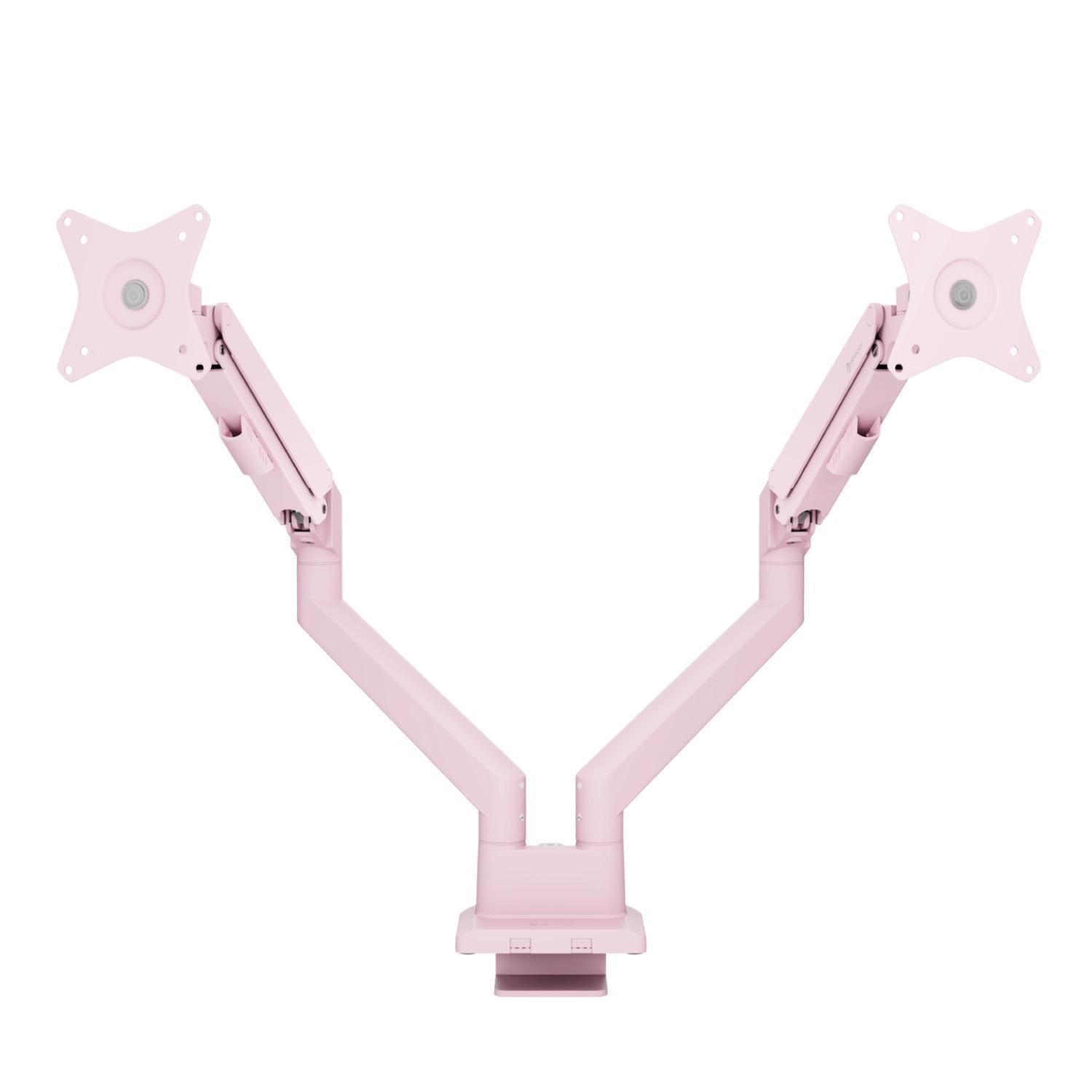
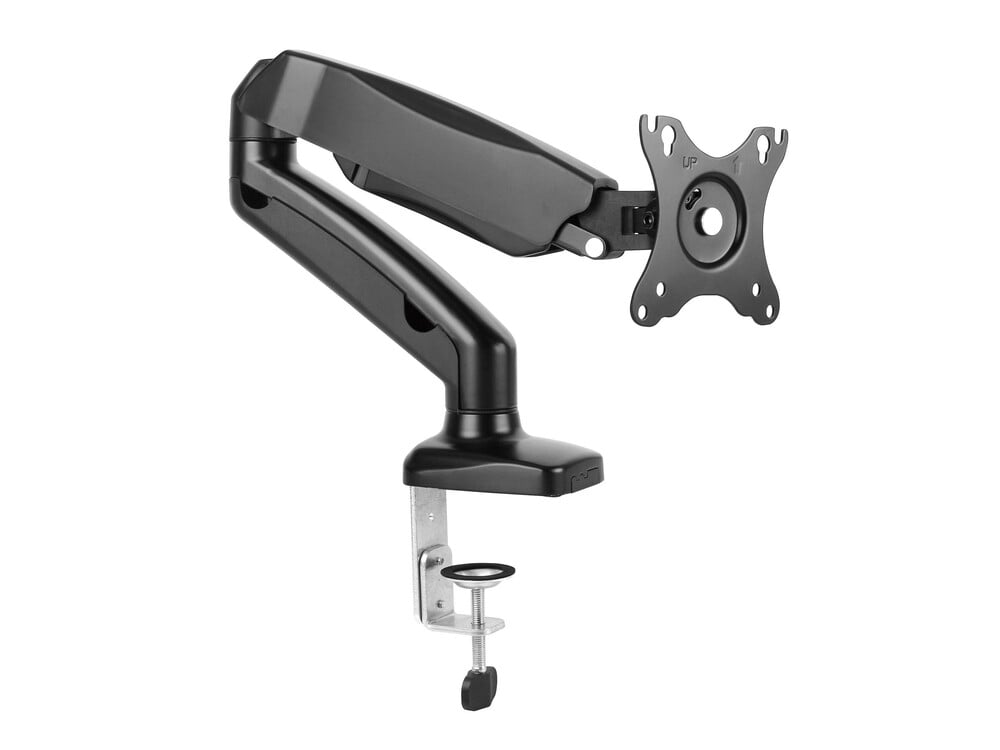
- Height adjustment, tilt, swivel and pivot are essential if you sit in front of it for several hours daily. If lacking, a VESA mount helps.
HDR: Mostly marketing
"HDR400" only means the signal is processed without visible effect. Real HDR starts at HDR600 with local dimming, or with OLED and mini-LED.
What to watch for in deals
- Check the panel type in the data sheet, not in the marketing text.
- "Gaming monitor" says nothing about image quality, only about refresh rate.
- Previous year models are often the best deals: panels change little from year to year.