Electronics · 6 min read · 22/09/2026
Buy an SSD: NVMe or SATA, and what size really makes sense
PCIe 4.0 or 5.0, DRAM cache, TBW and cooling: what matters when buying an SSD and where you can save without regretting it later.
Ad: links to partner shops are affiliate links. If you buy through them we receive a commission; your price stays the same. Prices are snapshots; the price in the shop is binding.
An SSD is the upgrade with the most noticeable effect: your computer starts in seconds, programs open immediately, games load faster. But an SSD is not an SSD. The differences lie in the connection, controller, cache and durability, and not every expensive SSD is better for you.
SATA or NVMe: The connection determines the speed
SATA SSDs in 2.5-inch format are limited to around 550 MB/s. That's plenty for office work, web browsing and as a data storage device, and they fit into any computer with a classic SATA connection, even older notebooks.
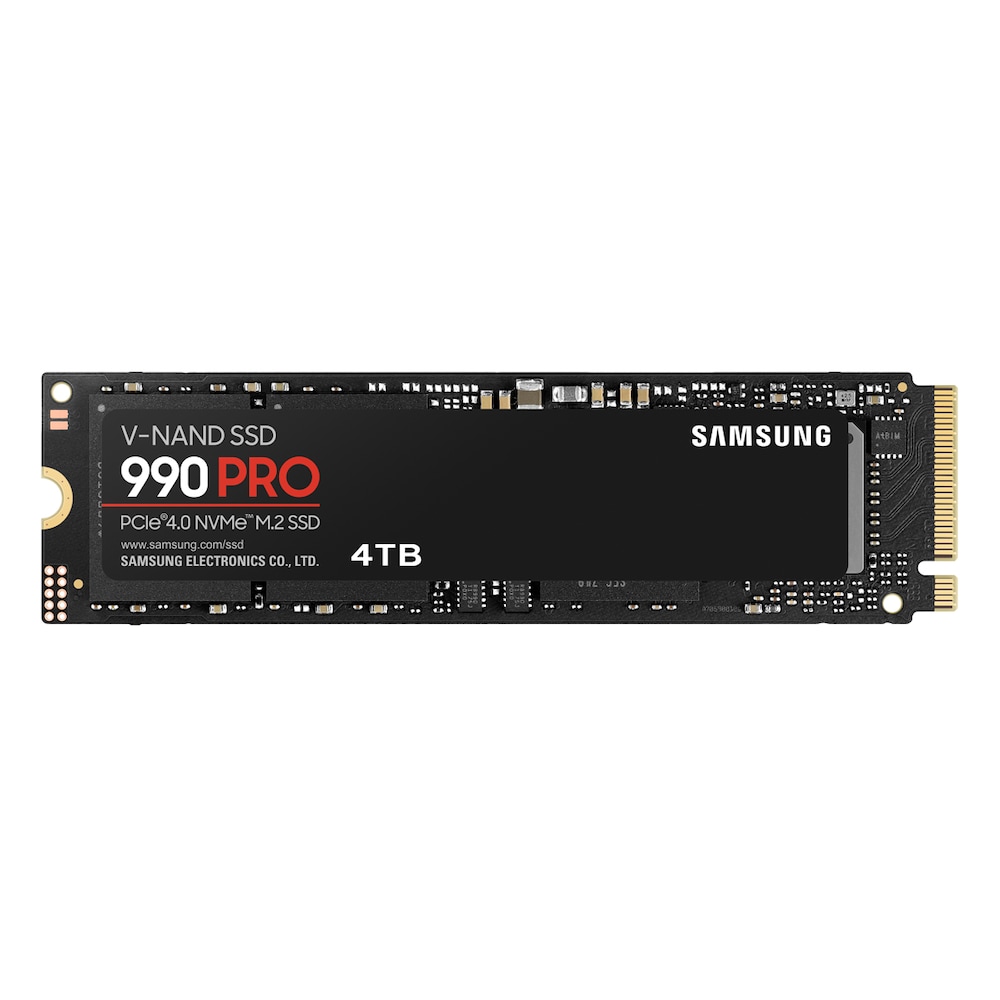
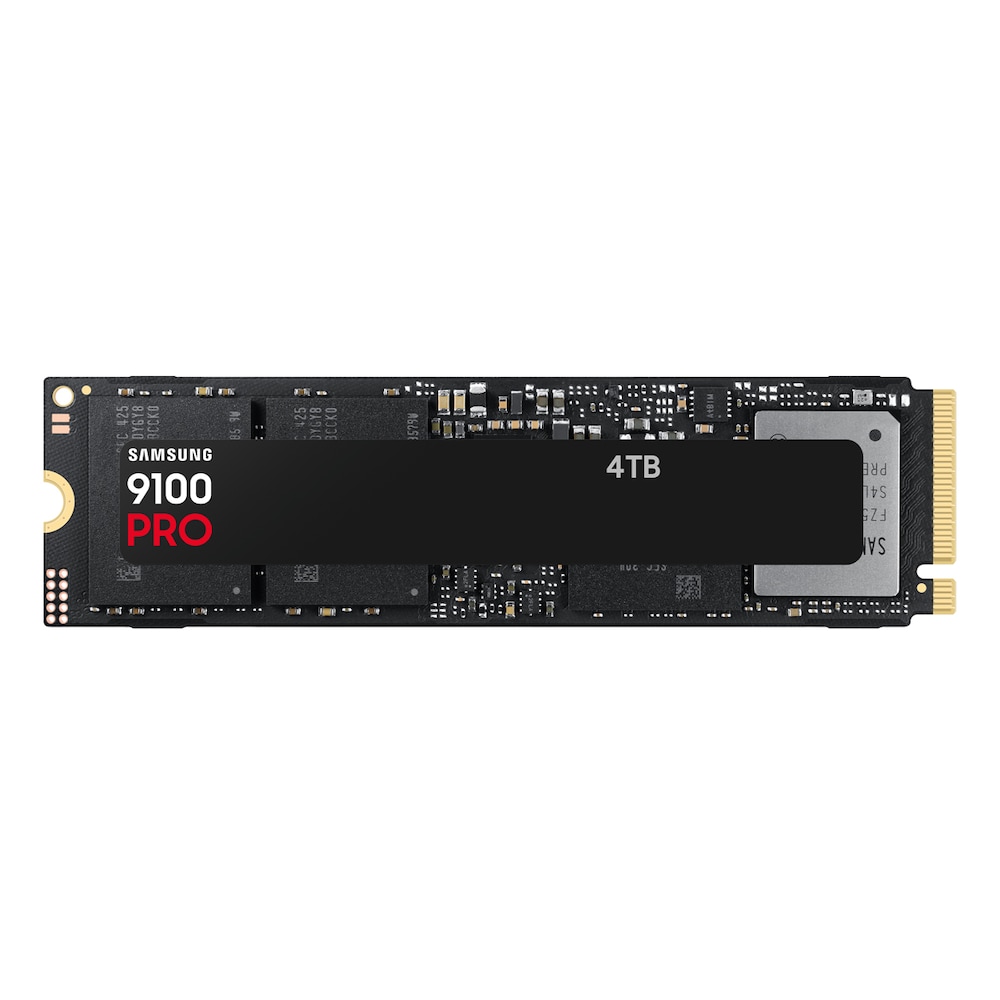
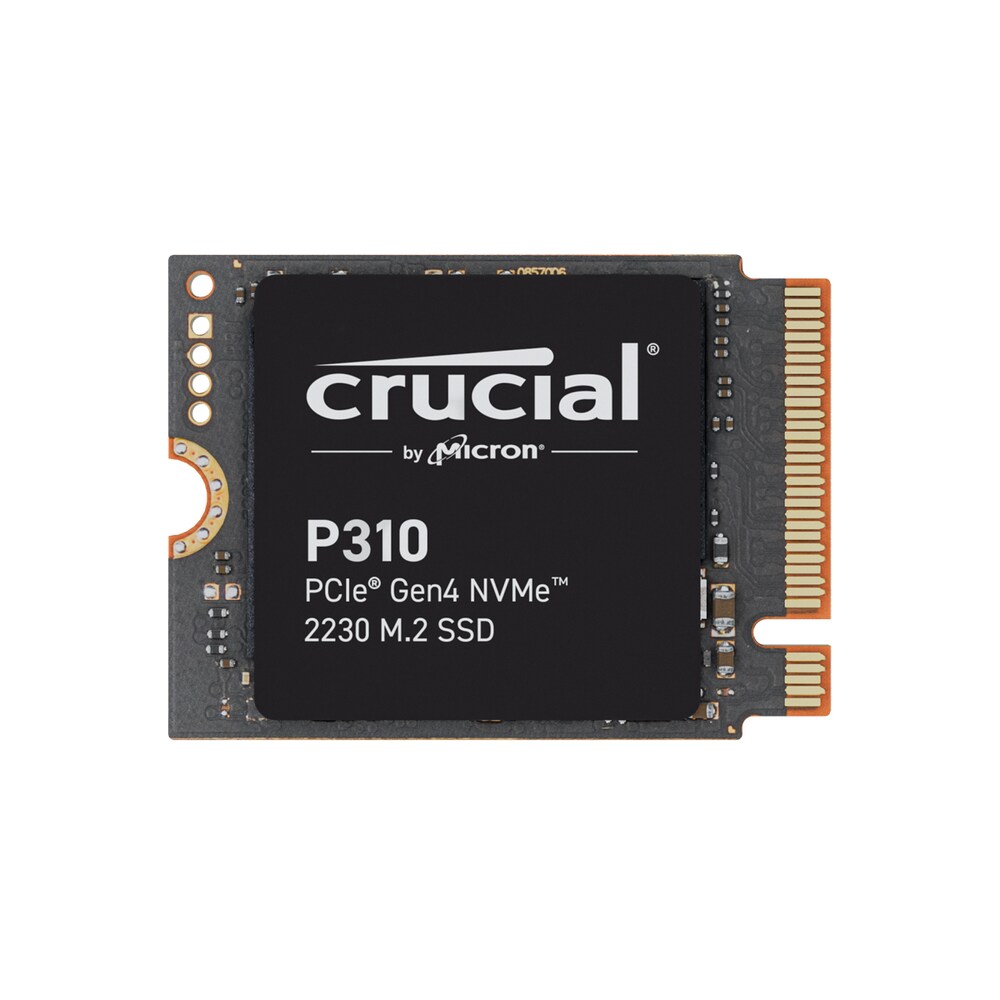
NVMe SSDs in M.2 format plug directly onto the motherboard and use PCIe. PCIe 3.0 delivers around 3,500 MB/s, PCIe 4.0 about 7,000 MB/s, PCIe 5.0 doubles that again. In everyday use you barely notice the difference between 4.0 and 5.0. The jump from SATA to NVMe is noticeable though, especially when copying large files and in games with streaming technology like DirectStorage.
Before buying, check what your motherboard or notebook supports: an M.2 slot and which PCIe generation. A PCIe 5.0 SSD will run in a 4.0 slot, but only at that speed.
Capacity: 1 TB is the sweet spot
- 500 GB is enough as a pure system drive, but gets tight quickly with two current games.
- 1 TB is the standard: operating system, programs and a handful of large games fit comfortably.
- 2 TB makes sense for gamers, video editing and if you only have one drive. The price per terabyte is often lower than 1 TB.
Important: SSDs get slower when they're almost full. Plan for about 15 percent reserve.
What the datasheets don't tell you
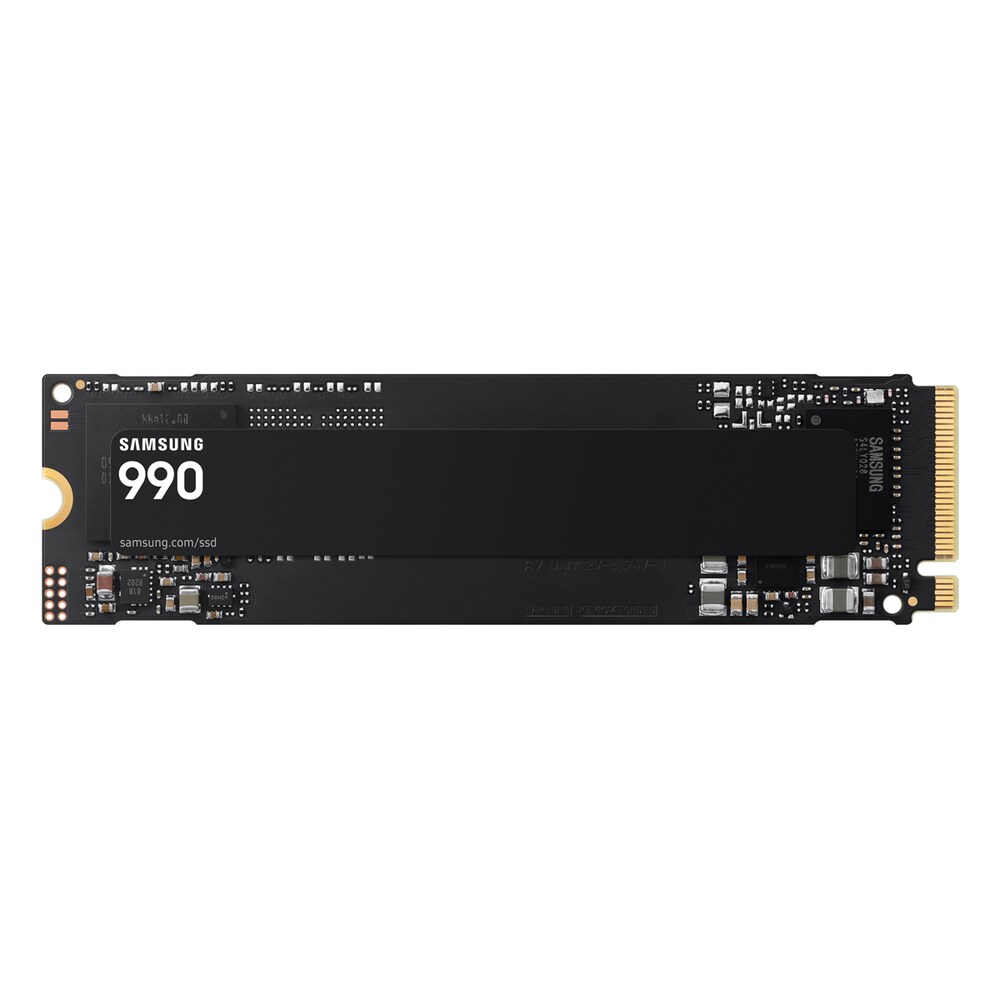
DRAM cache: cheap SSDs do without their own cache chip (DRAM-less). When copying many small files and with a full drive, their speed drops. As a system drive, prefer a model with DRAM or with Host Memory Buffer (HMB), which also uses the computer's RAM.
SLC cache: the advertised peak values only apply as long as the fast buffer isn't full. If you regularly copy 50 GB at once, pay attention to tests that measure speed after the cache is full.
TBW (Terabytes Written): the guaranteed write amount. 600 TBW on a 1 TB SSD means you could write 300 GB every day for five years. For normal use this is irrelevant, for video editing or databases it's not.
Warranty: five years is standard with brand manufacturers, three years with entry-level models.
Cooling and installation
PCIe 4.0 and 5.0 SSDs get warm under sustained load and then throttle. Many motherboards come with a heatsink for the M.2 slot. For PlayStation 5 a flat heatsink is mandatory, the SSD must support PCIe 4.0, and Sony recommends at least 5,500 MB/s. In thin notebooks only single-sided modules fit.
What to look for in deals
- Compare the model designation exactly: manufacturers sell SATA, PCIe 3.0 and PCIe 4.0 variants under similar names.
- With very cheap NVMe offers, check whether it's a DRAM-less model. As a second drive for games that's okay, as a system drive it's less ideal.
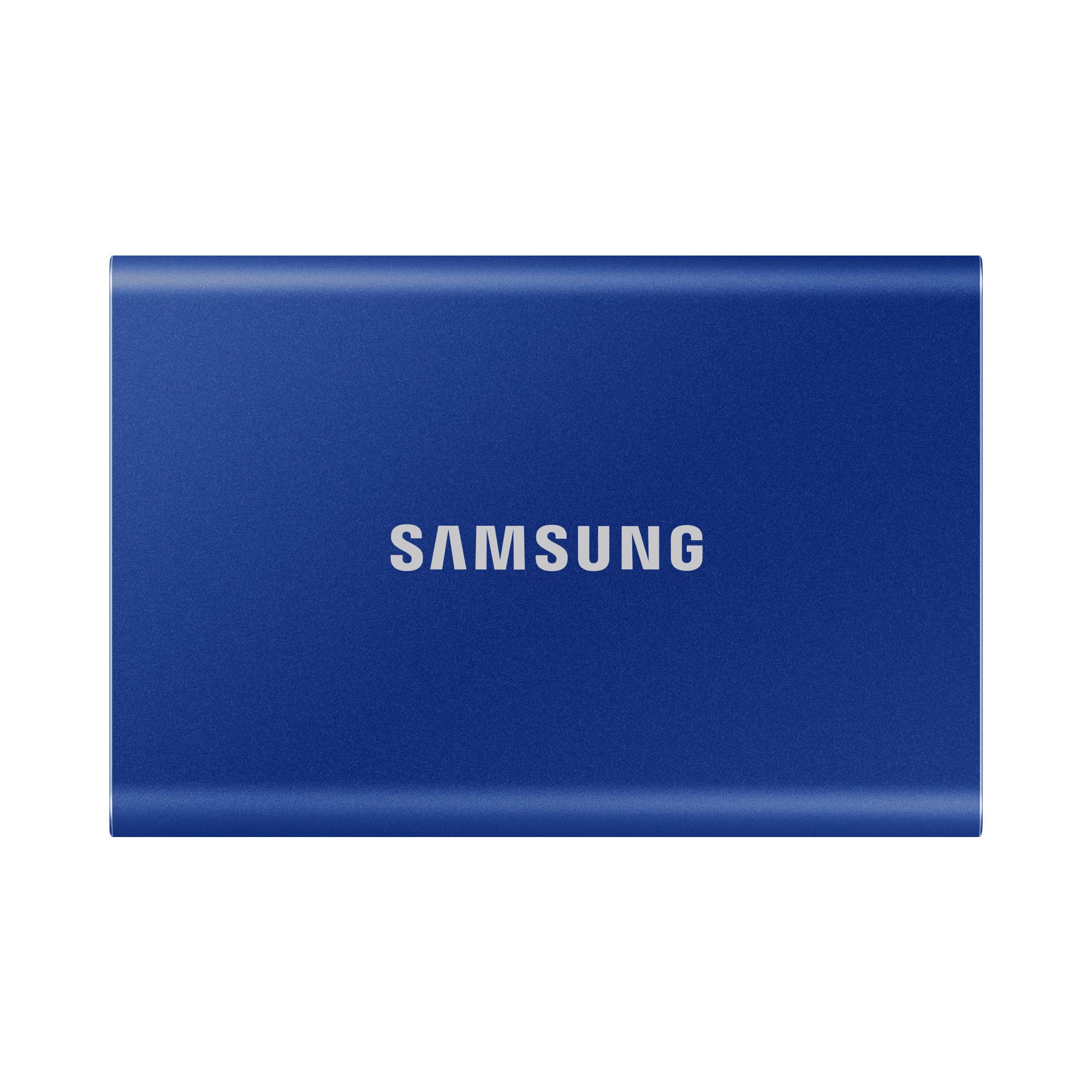
- External SSDs are a different category: here the connection matters more than the chip inside (USB 3.2 Gen 2 with 10 Gbit/s or USB4 with 40 Gbit/s).